
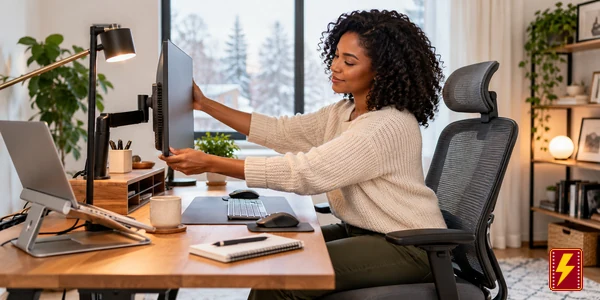
- Use an observe-rank-adjust-upgrade-maintain framework so the home office reset starts with real work friction rather than a shopping list.
- Try free positioning changes first: monitor height, keyboard and mouse reach, chair adjustment, glare control and desk clearance can solve major problems.
- Upgrade one bottleneck at a time so you can tell whether the new monitor, chair, desk, dock or computer actually improved the workday.
- OSHA recommends neutral postures, easy reach, supported seating and monitor placement generally 20–40 inches away with the top at or below eye level.
- The best office upgrade is the one you stop noticing because the repeated interruption is gone.
A home office reset is easy to turn into a shopping project.
A new desk, a bigger monitor, a premium chair, a dock, a mechanical keyboard and a lamp can make the workspace look completely different while leaving the original problem untouched.
The useful question is simpler: what is the single biggest thing making work harder right now?
This guide uses a practical framework: observe, rank, adjust, upgrade, maintain.
Observe where the workday actually breaks down. Rank the problems by impact. Adjust what you already own first. Upgrade only the bottleneck that remains. Then maintain the setup so the desk does not slowly become another source of friction.
A home office should be designed around the work, not the photo
Before buying anything, write down the tasks the space handles most often.
Examples include:
- writing;
- spreadsheets;
- video calls;
- coding;
- design work;
- research;
- customer support;
- editing;
- admin.
The ideal setup for long-form writing is not necessarily the ideal setup for color-sensitive design or constant video meetings.
Start with the bottleneck log
For three workdays, notice every time the workspace interrupts the job.
Write down things such as:
- neck discomfort;
- chair discomfort;
- screen too small;
- too much tab switching;
- poor video-call framing;
- slow laptop;
- not enough ports;
- cable clutter;
- glare;
- bad lighting;
- constant searching for chargers;
- desk too shallow;
- noise;
- paper piles.
Do not solve five problems at once:
Rank the problems by how often they occur and how much they interrupt the day.
The top one becomes the first upgrade target.
A home-office reset is not a furniture-shopping list. Start with what feels uncomfortable or slows you down each day: monitor height, keyboard reach, poor lighting, cable clutter, or a desk that makes you twist to reach essentials. Many improvements begin with adjusting what you already own, not replacing the entire setup.
Adjust the workstation before replacing it
OSHA’s computer-workstation guidance emphasizes arrangement and adjustability because poor positioning can create awkward postures even when the equipment itself is expensive.
That makes the first reset free:
- move the monitor;
- raise or lower the chair;
- bring keyboard and mouse closer;
- clear leg space;
- reduce glare;
- move frequently used items into reach.
Use the neutral-position test
You should be able to work without repeatedly leaning, reaching, twisting or bending the wrists.
OSHA recommends placing frequently used components such as the monitor, keyboard and mouse in front of you and arranging the workstation so the body is supported in neutral positions.
The monitor is often the cheapest high-impact adjustment
OSHA recommends putting the monitor directly in front of you and generally at least 20 inches away.
The top of the screen should be at or slightly below eye level.
If the screen is too low, you may spend hours looking down.
Try positioning before buying a new monitor:
You may only need:
- a monitor stand;
- a laptop stand;
- a monitor arm;
- a deeper desk position;
- larger text scaling.
Do not buy a larger monitor to solve a positioning problem:
A badly placed 32-inch screen is still badly placed.
A second monitor should solve workflow switching
A second display can be useful when you repeatedly work between:
- source material and writing;
- code and documentation;
- spreadsheet and browser;
- video call and notes;
- design and reference material.
Monitor & Display deals at DealsDasher can be useful when the bottleneck is genuinely screen space rather than poor window management.
Use the tab-switching test
Count how often you switch between two applications that need to remain visible at the same time.
If that happens constantly, another display may improve the workflow.
Do not add a second monitor because every productivity setup has one:
Some jobs are better with one excellent display and fewer distractions.
Laptop users often benefit from separating screen and input
For regular desk use, an external keyboard and mouse plus a laptop stand can create a more desktop-like arrangement.
Use the laptop-lift test
If raising the laptop screen to a comfortable height makes the built-in keyboard awkward to reach, external input devices are the logical companion purchase.
Laptop & Computer deals at DealsDasher make more sense when the machine itself is the bottleneck rather than its position.
Do not replace a working laptop because the desk setup is uncomfortable:
Fix the geometry first.
Keyboard placement matters more than keyboard price
OSHA recommends positioning the keyboard directly in front of you with relaxed shoulders, elbows close to the body and wrists straight.
Use the shoulder test
If you are lifting the shoulders to type, the keyboard or desk may be too high.
Use the wrist test
If the wrists bend sharply upward, downward or sideways while typing, change the placement before buying a different keyboard.
Do not buy a mechanical keyboard as an ergonomic solution by default:
Switch feel, layout and sound can be preferences rather than ergonomic improvements.
The mouse should live next to the keyboard
OSHA recommends keeping pointing devices close enough that you do not repeatedly reach away from the body.
Use the reach test
If your shoulder leaves the backrest every time you use the mouse, bring it closer.
Do not buy an ergonomic mouse before trying position and sensitivity:
A better mouse can help some users, but layout problems should be fixed first.
The chair is important because it supports the entire workday
OSHA describes a well-designed, properly adjusted chair as an essential component of a safe and productive workstation.
Useful chair features can include:
- adjustable seat height;
- supportive backrest;
- appropriate seat depth;
- stable base;
- adjustable armrests;
- ability to change posture.
Adjust the current chair before shopping
Check:
- feet supported;
- back supported;
- elbows near keyboard height;
- thighs comfortable;
- armrests not pushing shoulders upward.
Use a footrest before replacing a desk that is too high
Do not assume the most expensive chair is the best fit:
OSHA specifically recommends trying chairs because adjustability and body fit matter.
The desk should provide clearance and depth, not just surface area
OSHA notes that a well-designed desk should allow proper placement of equipment and adequate leg clearance.
A deep enough work surface also helps keep the monitor at a comfortable viewing distance.
Office Furniture deals at DealsDasher can be useful when the existing desk cannot physically support the correct setup.
Measure before buying a larger desk:
Record:
- room width;
- desk depth;
- monitor distance;
- leg clearance;
- chair movement;
- door clearance;
- storage needs.
Do not buy width when the problem is depth:
A longer desk does not fix a monitor that is too close.
Standing desks should solve position variety
The useful benefit of an adjustable desk is not that standing is automatically better than sitting.
It is that the work surface can adapt and allow more position changes.
Use the position-change test
If you already stand and move regularly, an expensive sit-stand desk may add less value than expected.
Do not turn standing into another rigid posture:
The goal is variation.
Lighting is a productivity and comfort problem, not only a décor problem
OSHA warns that glare and excessive light on the screen can contribute to eye fatigue and awkward viewing postures.
Lighting deals at DealsDasher can be useful when the actual problem is poor task lighting or glare control.
Use the glare test
Turn off the monitor and look at the dark screen.
If you can clearly see a window or bright lamp reflected in it, reposition the screen, light source or both.
Do not solve glare with a brighter monitor first:
Change the room arrangement where possible.
Place the strongest light to the side
Video-call lighting is a separate problem
If you spend hours on calls, front-facing soft light can improve visibility without overlighting the whole office.
Do not build the entire room around occasional video calls:
Solve the frequent work first.
Cable management should remove interruption
Cables become a problem when they:
- fall behind the desk;
- block leg space;
- disconnect frequently;
- create a messy charging routine;
- make cleaning difficult.
Use the cable-path test
Trace every cable from device to power.
Remove anything that is no longer connected to a real device.
Do not buy cable-management products before removing dead cables:
Organizing unused cables only makes obsolete clutter neater.
A dock is useful when connection friction is repeated
A dock can make sense when a laptop is connected and disconnected daily from:
- monitor;
- keyboard;
- mouse;
- Ethernet;
- storage;
- audio;
- power.
Use the plugs-per-day test
If you reconnect several cables every morning and remove them every evening, a dock may earn its cost.
Do not buy a dock with ports you cannot name a use for:
Compatibility matters more than the port count printed on the box.
Charging friction can be solved cheaply
A charger, cable or power strip can sometimes remove more daily annoyance than a major desk upgrade.
Use the battery-interruption test
If work stops because the correct charger is in another room, give the office a permanent charging setup.
Do not replace a device because charging is inconvenient:
Fix the power setup first.
Paper should have one workflow
Home offices often accumulate:
- mail;
- receipts;
- notes;
- printed references;
- documents waiting for action.
Use three destinations
Create:
- act;
- file;
- discard or shred.
Do not create a “miscellaneous papers” pile:
That is delayed decision-making.
Storage should keep frequently used items inside the primary work zone
OSHA recommends keeping frequently used items within easy reach to reduce repeated stretching and awkward postures.
Storage & Organization deals at DealsDasher make sense when the remaining equipment genuinely needs a permanent home.
Do not put daily tools in beautiful storage across the room:
Convenience matters more than appearance.
Use the five-minute start test
Can you sit down and begin productive work within five minutes?
If not, identify what delays the start:
- clearing the desk;
- finding the charger;
- connecting cables;
- opening the right files;
- moving personal items;
- adjusting the room.
A good office reset shortens the start sequence
The less setup required, the easier it is to begin.
Do not confuse decoration with readiness:
A perfect shelf does not compensate for a desk that takes ten minutes to become usable.
Noise is a real bottleneck for some home offices
If calls, traffic, family activity or neighboring rooms repeatedly break concentration, the first improvement may be:
- door seal;
- headphones;
- rug;
- soft furnishings;
- different desk position;
- work-hour change.
Do not buy acoustic panels before testing simpler changes:
Position and scheduling may solve the problem more cheaply.
Temperature and airflow can affect comfort too
OSHA notes that ventilation, humidity and direct air-conditioning airflow can affect workstation comfort.
Use the room-comfort test
If you regularly stop work to adjust clothing, heater, fan or window, the environment itself is part of the setup.
Do not spend on furniture to solve a temperature problem:
Fix the right bottleneck.
Upgrade the computer only when performance is the proven problem
If the machine regularly:
- freezes;
- runs out of memory;
- cannot handle required software;
- has unreliable battery life;
- cannot support needed displays;
- has inadequate storage;
then hardware may be the real constraint.
Use task timing before replacing the machine
Measure how much time is actually lost waiting on the computer.
Do not upgrade because the laptop looks old:
Upgrade because it blocks the workload.
Storage upgrades can extend the life of the current computer
If the primary problem is capacity, an SSD or external storage may be much cheaper than replacing the system.
Use the bottleneck-not-age rule
Age is context. Performance is the decision.
New Year sales should finance the fix, not create the need
A January discount can be useful once you have already identified the weak point.
Use the 30-day annoyance test
Before buying an expensive office upgrade, ask whether the same problem has bothered you repeatedly for at least a month.
Do not buy expensive productivity gear after one frustrating afternoon:
Repeated friction is stronger evidence.
Use the one-upgrade rule
Change one major component at a time.
Then work with the new setup for a week.
This reveals whether the problem actually disappeared:
If you replace the desk, chair, monitor and keyboard together, you may never know which change mattered.
Use the home-office scorecard
| Question | Score 0–2 |
|---|---|
| Can I name the biggest daily work bottleneck? | 0–2 |
| Have I tried a free adjustment first? | 0–2 |
| Will the upgrade affect work several times a week? | 0–2 |
| Does it fit the room and current equipment? | 0–2 |
| Would I buy it without the New Year reset narrative? | 0–2 |
The adjust-first rule
Move, raise, lower, clear and reposition before spending money.
The upgrade rule
Upgrade when the same bottleneck keeps interrupting work and the new item directly removes it.
The compatibility rule
Before buying, check:
- desk dimensions;
- port compatibility;
- monitor mounting;
- chair height range;
- power needs;
- room clearance.
The skip rule
Skip the purchase when:
- the problem has not been defined;
- a free adjustment fixes it;
- the product duplicates something you own;
- it adds setup or clutter;
- the aesthetic is doing more work than the function.
Use a ten-minute weekly reset
Once a week:
- clear the desk;
- return chargers;
- file papers;
- clean the screen;
- remove unused cables;
- reset the chair and monitor position.
Maintenance protects the upgrade:
A good setup can slowly become a bad setup when equipment migrates and clutter returns.
Fix placement before replacing furniture:
OSHA recommends placing the monitor directly in front of the user, at least 20 inches away, with the top line at or below eye level. Small placement changes can reveal whether the real bottleneck is the monitor, chair, input devices, lighting or desk.
Fix the work bottleneck before replacing the office
A New Year home-office reset should make work easier, not simply make the room look newer.
OSHA’s workstation guidance consistently emphasizes placement, support, viewing distance, neutral wrist positions, easy reach and glare control. Those are powerful because many of them can be improved without replacing the desk at all.
Start with the bottleneck log. Adjust what you already own. Upgrade one problem at a time. Measure whether the change actually improves the workday.
The best home-office upgrade is not the most impressive item on the desk.
It is the one you stop noticing because the problem is gone.
Frequently Asked Questions
What should I upgrade first in a home office?
Upgrade the part that creates the most frequent work interruption. For one person that may be the chair; for another it may be monitor position, lighting, computer performance or cable setup.
How high should my monitor be?
How far should a monitor be from my eyes?
OSHA recommends a comfortable viewing distance generally between about 20 and 40 inches, depending on screen size and text readability.
Do I need a standing desk?
Not necessarily. An adjustable desk can be useful when it helps vary working positions, but it is not automatically more useful than a correctly adjusted seated setup.
Should laptop users buy an external keyboard and mouse?
For regular desk use, they can help because raising the laptop screen to a comfortable height otherwise makes the attached keyboard difficult to use comfortably.
Is a second monitor worth it?
It can be when you constantly switch between two applications that need to remain visible at the same time. It is less useful when one screen already handles the workflow well.
How do I make a small home office better?
Prioritize monitor depth, clear leg space, frequently used items within reach, compact storage and good lighting before adding more furniture.
What is the biggest home-office reset mistake?
Replacing the whole setup before identifying whether the real bottleneck is posture, screen placement, performance, lighting, noise, storage or workflow.